
Overview, Usage, and What to Expect
Phonecheck offers SimLock, CarrierLock, and ESN checks to help accurately determine a device’s carrier status and eligibility for resale or reuse. These checks rely on external carrier and industry databases and are therefore paid checks. Because of this, it is important to understand what each check does, how it is performed, where results appear, and when licenses are consumed.
Important Note: Paid Checks!
SimLock, CarrierLock, and ESN checks are paid services.
Each time one of these checks is performed, it may consume a license depending on your configuration and usage.
We strongly recommend:
-
Running these checks only when needed
-
Reviewing your Dashboard Profile Customization settings to ensure checks are enabled intentionally
-
Understanding the difference between manual execution and automated execution
Check Breakdown: What Each Check Does
SimLock Check
The SimLock check determines whether an iOS device is:
-
Unlocked, meaning it can be used on any supported carrier
-
Locked, meaning it is restricted to a specific carrier
This check answers the question:
“Is this iPhone unlocked or carrier-locked?”
Key notes:
-
Applies to iOS devices only
-
Does not identify the carrier when locked (that is handled by the CarrierLock check)
CarrierLock Check
The CarrierLock check is used only when a SimLock result returns as Locked.
It identifies which carrier the device is locked to, such as:
-
Verizon, T-Mobile, Vodafone UK, etc.
This check answers the question:
“Which carrier is this iPhone locked to?”
Key notes:
-
Applies to iOS devices only
-
Requires the device to already be identified as Locked via SimLock
ESN Check
The ESN check evaluates a device’s IMEI/ESN against carrier and industry databases to determine its status.
This check can identify:
-
Good / Clean ESN
-
Blacklisted devices (Lost or Stolen)
-
Financed devices (U.S. only)
For U.S. devices, finance status checks are supported across:
-
Verizon, T-Mobile, and Tracfone/Straight Talk
This check answers the question:
“Is this device safe to activate and resell?”
Key notes:
-
Applies to both iOS and Android
-
Highly recommended for resale and trade-in workflows
-
Results may vary depending on carrier reporting and region
Where Results Appear in Phonecheck
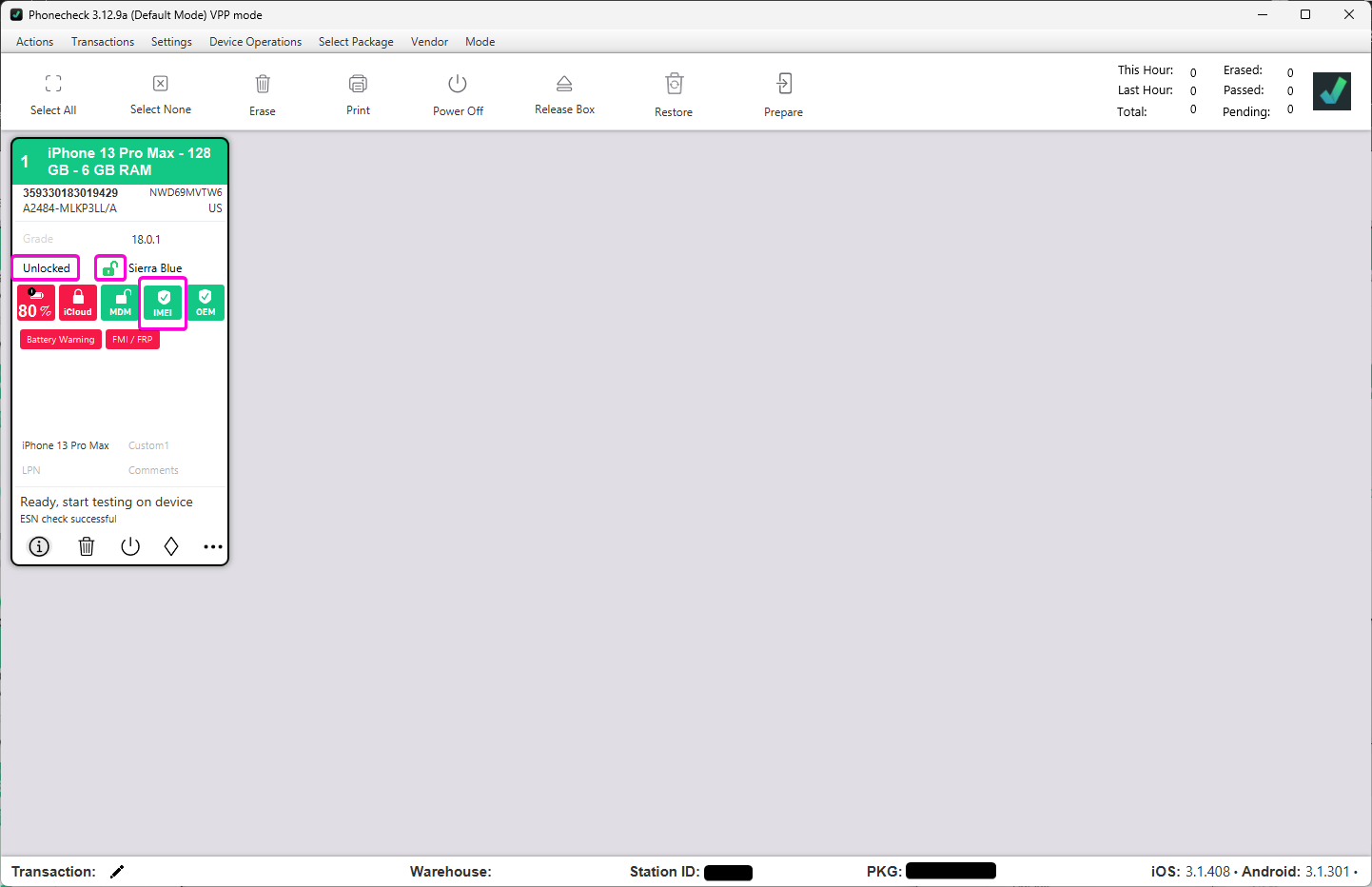
SimLock Result Location
-
Displayed as a padlock icon
-
Green padlock: Unlocked (usable on any carrier)
-
Red padlock: Locked to a specific carrier
CarrierLock Result Location
-
Displayed in the Carrier field
-
Example results:
-
Unlocked
-
Verizon
-
UK Vodafone
-
ESN Result Location
-
Displayed in the IMEI sqaure
-
Green: Good ESN
-
Red: Bad ESN
-
Examples: Lost, Stolen, Financed
-
How to Perform These Checks
You can perform SimLock, CarrierLock, and ESN checks manually or automatically, depending on your workflow needs.
Manual Execution
Manual checks are ideal when you want full control over when licenses are consumed.
Steps:
-
Select the device square(s) you wish to check
-
Open the Device Operation dropdown
-
Select the desired option:
-
SimLock
-
CarrierLock
-
ESN Check Finance
-
ESN Check Blacklist
- ESN Check ALL
-
The selected check will run immediately and display results in the UI.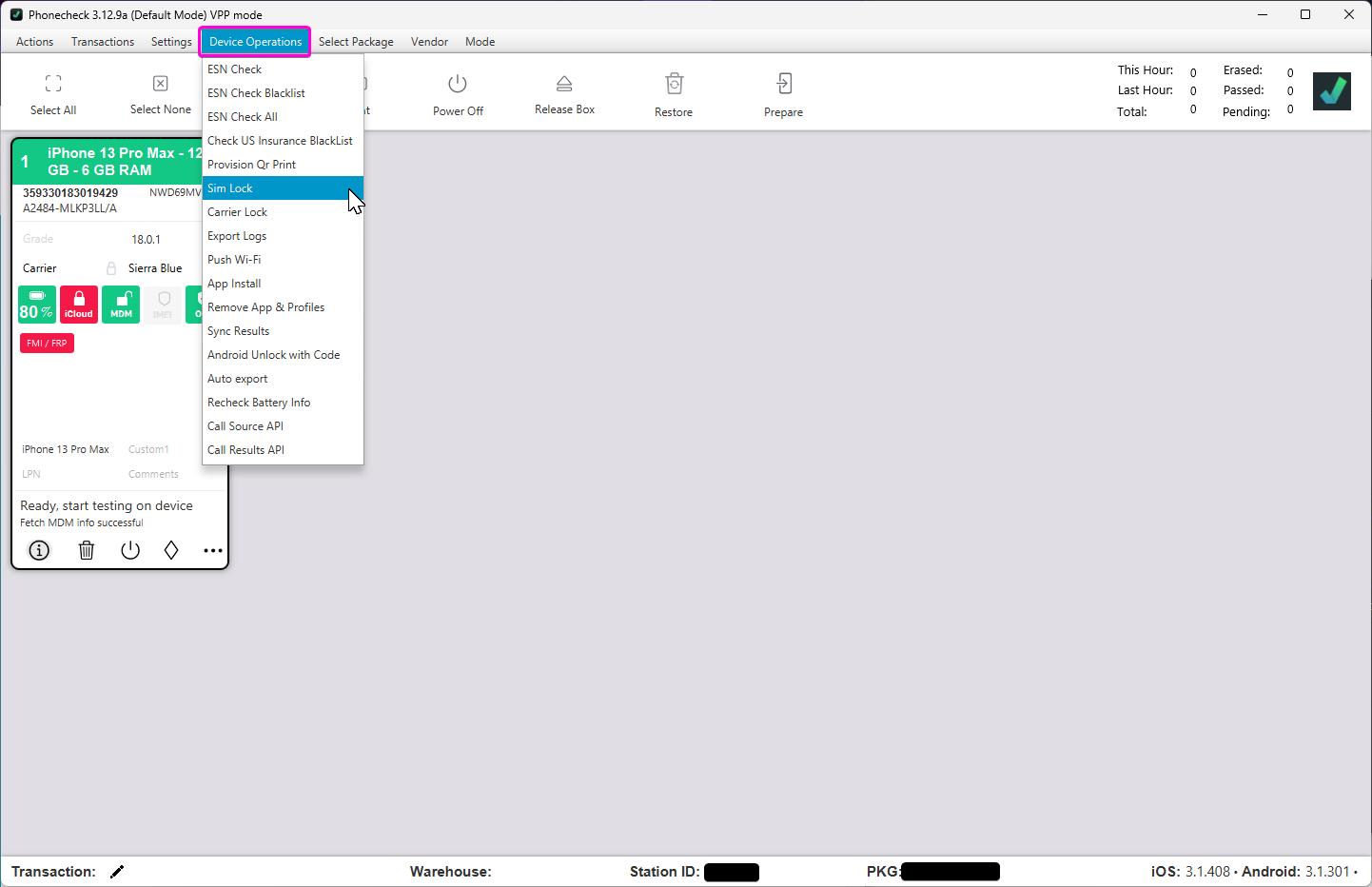
Automated Execution
Automated checks are recommended for high-volume operations where consistency is required.
Steps:
-
Navigate to your Dashboard (https://dash.phonecheck.com/customizations)
-
Navigate to Customizations (Create or Edit Profile)
-
Configure IMEI/ESN check settings
-
Enable the desired checks to run automatically during processing
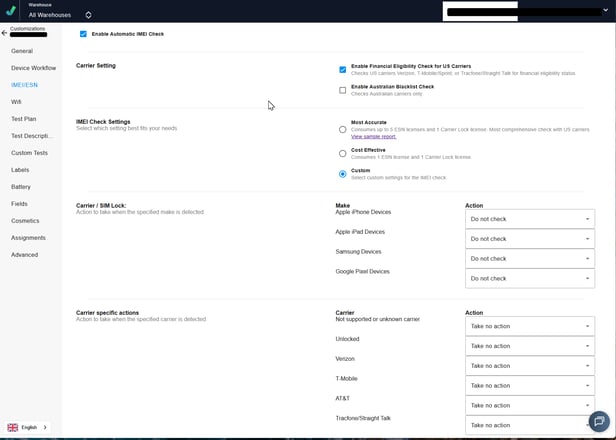
Important:
Automated checks will consume licenses automatically whenever devices meet the configured criteria. Ensure these settings are reviewed carefully to avoid unintended usage.
Summary
SimLock, CarrierLock, and ESN checks provide critical visibility into a device’s carrier and blacklist status. Because these are paid checks, understanding how and when they run is essential for cost control and operational accuracy.
By using manual checks selectively or configuring automation thoughtfully, you can ensure reliable results while aligning with your business needs.
If you have questions about licensing, configuration, or best practices, please contact Phonecheck Support.