
Regular sensor cleaning helps prevent misreads, blank labels, and jamming. DYMO recommends performing this maintenance every six months. The process is simple and takes only a few minutes.
Before You Begin
You will need:
-
A rigid business card
-
Pure isopropyl alcohol
-
A dry cotton swab
-
The reference images/videos included in this article
Step-by-Step Instructions
1. Review the reference photos
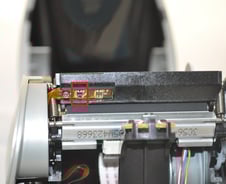
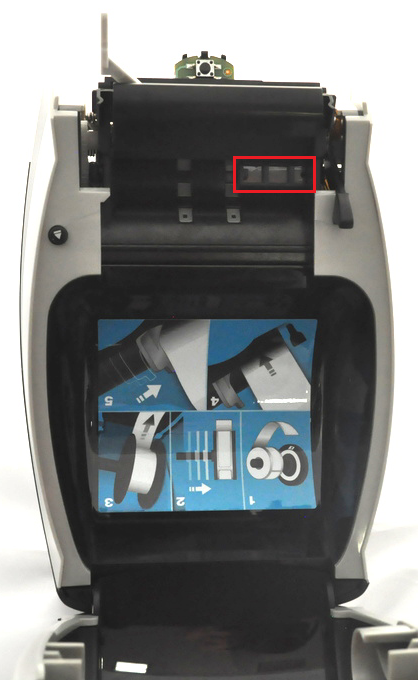
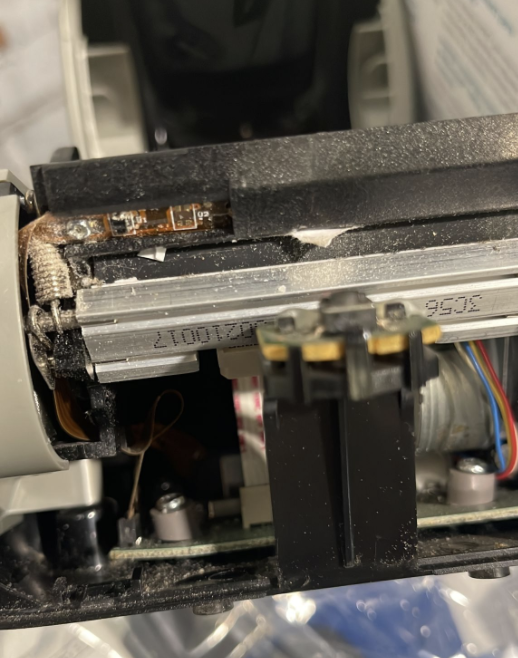
Take a moment to look at the images provided. They show the location of the entry sensor, exit sensor, rollers, and the front cover clips. Knowing what you are looking for will make the process easier.
2. Disconnect the USB cable
Unplug the printer from your computer, but leave the power cable connected. This allows the printer to power the rollers during cleaning.
3. Open the lid and remove any labels
Lift the top cover and take out the label roll so the printer path is clear.
4. Remove the front cover
Gently detach the front cover as shown in the photos. Avoid using force—steady pressure is enough.
5. Prepare a cleaning card
Lightly moisten both sides of a business card with pure alcohol.
Important: The card must be rigid enough for the roller to feed it. Do not oversaturate it.
6. Clean the entry sensor
Insert the dampened business card under the Entry Sensor (see reference image).
Run the card through the printer up to 10 times.
If the sensors are dirty, you will see residue on the card. Continue until the card comes out clean, replacing it if needed.
7. Locate the exit sensor
Using the “Exit Sensor” photo, identify the second sensor area located near the output path.
8. Clean the exit sensor chips
Use a dry cotton swab to gently clean the small black sensor chips. A light, thorough pass is sufficient—no liquid is needed here.
9. Reinstall the front cover
Position the cover back onto the printer. Make sure all four connection points engage:
-
Two hooks at the bottom
-
Two notches at the top
You should hear a soft click when it is properly secured.
10. Reconnect the printer and test
Plug the USB cable back into your computer and print a test label to confirm everything is functioning normally.