
This feature allows the user to enter the Unlock Codes into the Cloud and Unlocking the Android once connected to Phonecheck
The first step is uploading the Android Unlock Codes to the Dasboard Portal.
1. Navigate to the Dashboard Portal → Advanced → Android Unlock Codes
https://dash.phonecheck.com/android-unlock-codes
2. Download "Unlock Code" Template
3. Fill out the template (MEID and UnlockID)
4. Attached finished file and upload

Now that you have uploaded your Unlock Codes, you must enable a flow in your Customization Profile on when Android Unlock should take place.
There are 3 ways for the user to initiate network unlock:
-
Auto Set up Android Unlock with Code on the Connection Workflow
-
Auto Set up Android Unlock with Code on the Test Results Workflow
-
Manually - By selecting the device and selecting ‘Android Unlock’ under the ‘Device Operations’ menu.
Auto Set Up Instructions
1. Go into the Dashboard site to edit your Customization Profile
https://dash.phonecheck.com/customizations
2. Edit desired Customization Profile
3a. To enable Unlocking Devices at the beginning of the connection
Device Workflow → Connection Workflow → Enable "Android Unlock with Code"
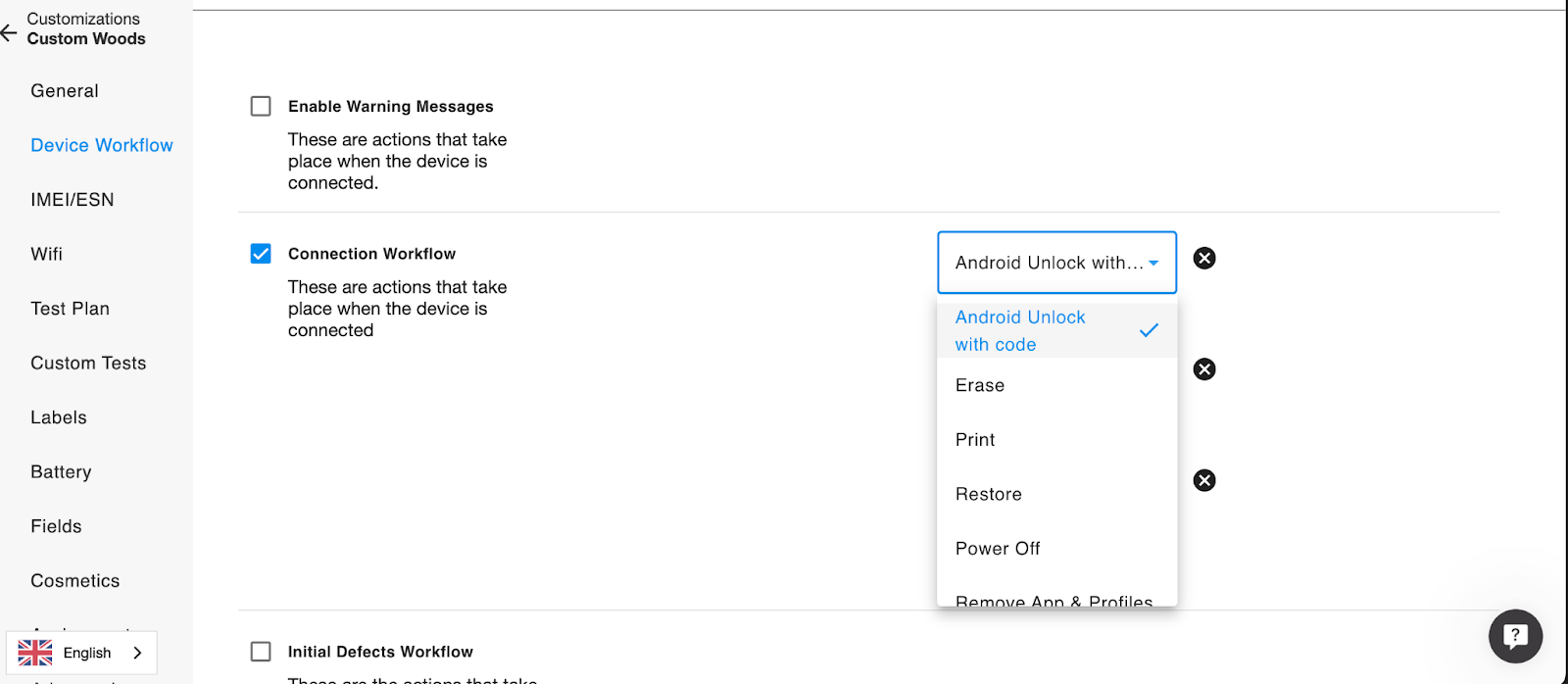
3b. To enable Unlocking Devices at the end of the connection
Device Workflow → Test Results Workflow → Enable "Android Unlock with Code"
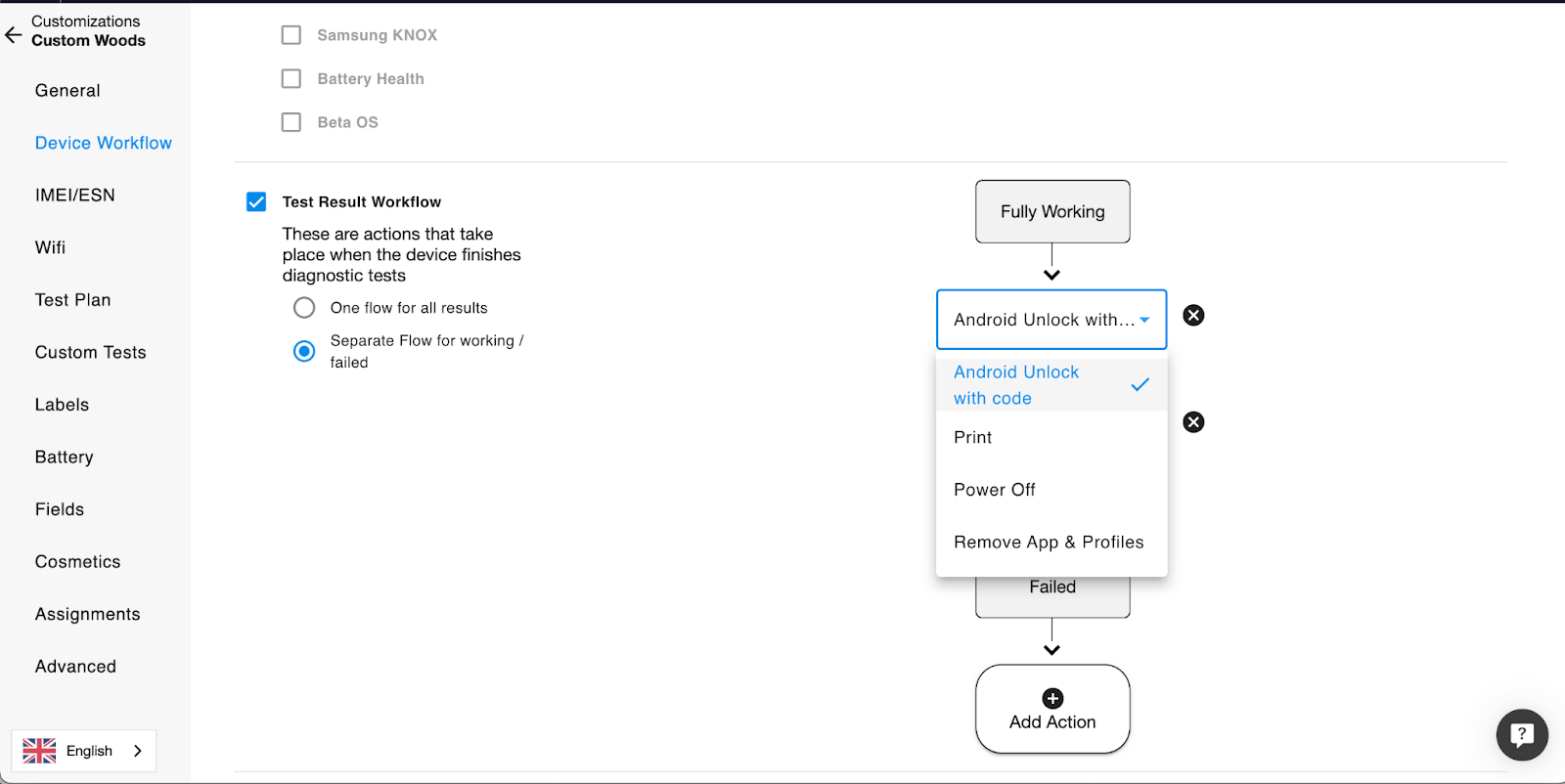
4. Save Changes
Manual 'Android Unlock' option using Device Operations dropdown

Now that you have Uploaded your Unlock Codes to the Cloud Portal and enabled "Android Unlock with Codes" in your workflow, you are ready to process them on the Phonecheck 3 desktop.
1. Open the Phonecheck 3 Desktop application.
2. Connect an Android device that has an Unlock Code uploaded.
3. Android Unlock will take place automatically based on set workflow