
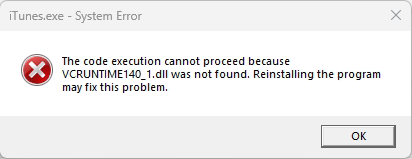
Some Windows users may encounter an error when launching iTunes that states a required file (such as VCRUNTIME140_1.dll) is missing. While reinstalling iTunes temporarily resolves the issue, the error may return if system cleanup or antivirus tools continue to remove required Microsoft runtime files.
This article explains why this happens and provides step-by-step instructions to prevent the issue from recurring.
Why This Happens
iTunes relies on Microsoft Visual C++ Redistributable files that are shared across Windows. Certain system utilities or antivirus products may mistakenly remove or quarantine these files as part of automated cleanup, optimization, or security scans.
When this occurs, iTunes cannot start until the missing components are restored.
Common causes include:
-
Automated PC cleanup or “optimizer” tools
-
Antivirus software with aggressive remediation settings
-
Windows updates that trigger cleanup or rollback actions
How to Prevent the Issue from Reoccurring
The recommended solution is to disable automatic cleanup features or add exclusions so required files are not removed.
Step 1: Completely Uninstall iTunes and Apple Components
Before reinstalling iTunes, all related Apple components must be removed to ensure no corrupted dependencies remain.
-
Open Settings → Apps → Installed apps (or Apps & Features)
-
Uninstall the following items in this order if present:
-
iTunes
-
Apple Software Update
-
Apple Mobile Device Support
-
Bonjour
-
Apple Application Support (32-bit)
-
Apple Application Support (64-bit)
-
-
Restart the computer once all components have been removed
Step 2: Reinstall Microsoft Visual C++ Redistributable
iTunes depends on Microsoft Visual C++ runtime files to operate correctly.
-
Download the latest supported Microsoft Visual C++ Redistributable 2015–2022 from Microsoft (https://learn.microsoft.com/en-us/cpp/windows/latest-supported-vc-redist)
-
Install both versions:
-
x64 (64-bit)
-
x86 (32-bit)
-
-
Restart the computer after installation
Step 3: Reinstall iTunes (Standalone Installer)
To ensure full compatibility, we recommend using the standalone installer from Apple rather than the Microsoft Store version.
-
Download iTunes directly from Apple’s website (https://www.apple.com/itunes)
-
Run the installer and complete setup
-
Restart the computer once installation is complete
Step 4: Check for Cleanup or Optimization Tools
(Skip if it does not apply)
Please check if any of the following (or similar) applications are installed:
-
CCleaner
-
Advanced SystemCare
-
Glary Utilities
-
Wise Care 365
-
CleanMyPC
-
Any PC optimizer or registry cleaner
If one is installed, proceed to Step 5
Step 5: Disable Automatic Cleaning (Example: CCleaner)
(Skip if it does not apply)
If CCleaner or a similar tool is in use:
-
Open the application
-
Navigate to Options → Smart Cleaning
-
Disable:
-
Smart Cleaning
-
Run at system startup
-
-
Go to Options → Monitoring
-
Disable all monitoring options
-
Save changes and restart the computer
We strongly recommend avoiding registry cleaning on systems running iTunes or Apple device services.
Step 6: Add Required Folder Exclusions
(Skip if it does not apply)
To prevent required files from being removed, add the following folders as exclusions in any cleanup or antivirus software:
C:\Program Files\iTunes\

C:\Program Files\Common Files\Apple\

C:\Windows\System32\

C:\Windows\SysWOW64\
Step 7: Windows Defender / Windows Security
If using Windows Defender:
-
Open Windows Security
-
Select Virus & threat protection
-
Click Manage settings
-
Scroll to Exclusions and select Add or remove exclusions
-
Add the following exclusions:
-
Folder:
C:\Program Files\iTunes\ -
Folder:
C:\Program Files\Common Files\Apple\ -
File (if present):
VCRUNTIME140_1.dll
-
Step 8: Third-Party Antivirus Software
If a third-party antivirus solution is in use (e.g., Sophos, Bitdefender, CrowdStrike, SentinelOne, McAfee, Avast):
-
Ensure the folders listed above are excluded from scans and remediation
-
Disable automatic file cleanup or quarantine for system runtime files
-
Contact your IT administrator if these settings are centrally managed
Final Validation (Recommended)
Once exclusions are in place:
-
Reinstall Microsoft Visual C++ Redistributable 2015–2022 (both x64 and x86)
-
Reinstall iTunes
-
Restart the computer
-
Confirm iTunes launches successfully
Summary
This issue is not caused by iTunes itself, but by required Microsoft runtime files being removed by automated tools. Adding exclusions or disabling cleanup features ensures iTunes can continue to run reliably without repeated reinstalls.
If the issue persists after completing these steps, please contact support for further assistance.